Garmin & HRV: Turn On Recording — and Re-Check It After Every Update
On many Garmin watches HRV recording is off by default and gets reset by firmware updates. Here is how to enable it so obseed can analyse your HRV.

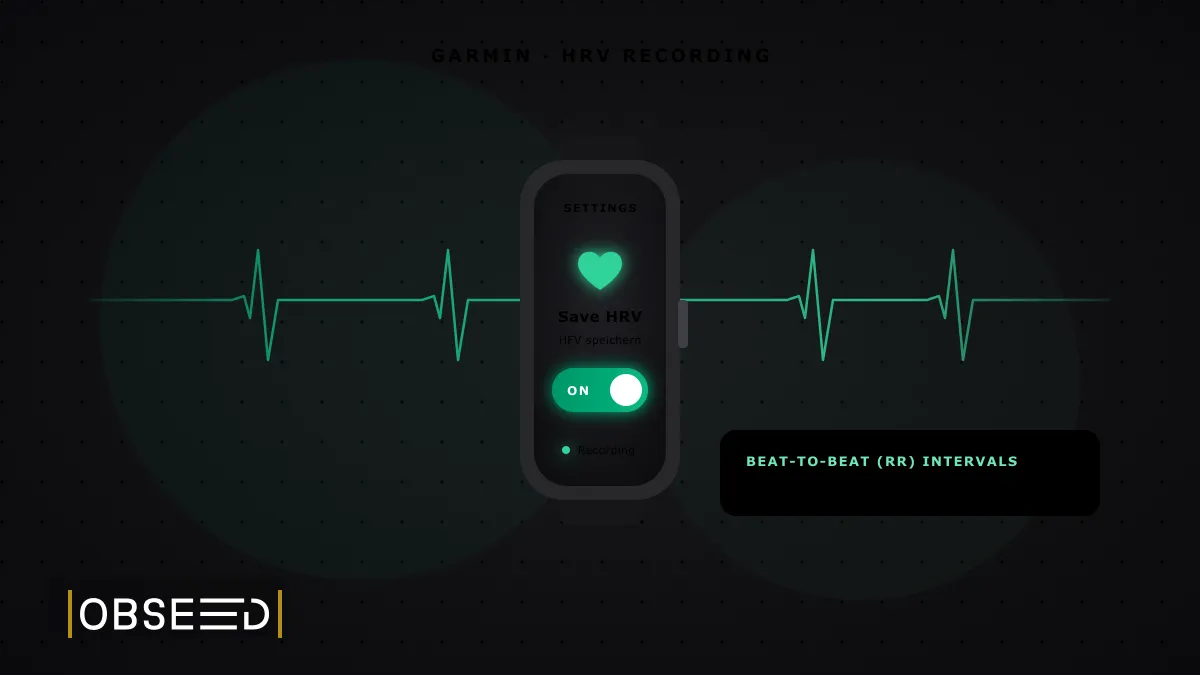
You’ve connected your Garmin to obseed, recorded an activity, and the HRV analysis shows nothing. This is almost never your fault: on many Garmin watches, heart rate variability (HRV) recording is disabled by default. And there’s an added catch: even if you’ve turned it on once, firmware updates can quietly reset the setting.
The good news: it’s a two-minute fix. Here’s the exact walkthrough.
Why this matters for obseed
obseed calculates over 60 HRV metrics directly from RR intervals, the millisecond-precise gaps between each individual heartbeat (more on this in the HRV Analytics overview). That beat-to-beat data only makes it into your activity file when your watch is actually saving it. That’s precisely what the “Save HRV” setting controls.
When it’s off, not just obseed but Garmin itself loses the data foundation: the activity is recorded, just without the fine-grained variability we analyse. We’ve covered what HRV actually tells you and how to use it for training decisions in a separate post.
How to enable HRV recording
On the watch itself (example: Forerunner 970 and fenix 8; other models are nearly identical):
- Hold the middle-left button on the watch face.
- Select Watch Settings.
- System
- Advanced
- Data Recording
- Set Save HRV to On.
Garmin’s own description of the setting: “Enables the watch to record your heart rate variability during an activity.” That recording is exactly what obseed then analyses.
Official manuals for your watch
The menu path is virtually identical across current Garmin watches with HRV support. Here are the official Garmin manual pages for reference:
Can’t find “Save HRV” under Data Recording? Then your watch most likely records HRV during activities automatically. In that case, you just need to make sure a heart rate source (ideally a chest strap) is connected. Search your model’s Garmin manual for the “Data Recording” section.
Don’t confuse them: “Save HRV” is not “HRV Status”
Garmin has two distinct HRV features that are easy to mix up:
- Save HRV (Data Recording): records beat-to-beat HRV during an activity. This is the data obseed uses.
- HRV Status: a nightly recovery value that Garmin calculates from HRV during sleep. It requires roughly three weeks of continuous wear (including overnight) before it appears, and it’s a Garmin-proprietary score, independent of activity HRV.
One more thing worth knowing: a factory reset of the watch clears the HRV Status baseline, and the three-week accumulation starts from scratch.
Verifying it works
- Confirm Save HRV is set to On. ✓
- Record an activity with a connected heart rate source. For clean data, we recommend a chest strap like the Garmin HRM Pro or the Polar H10. The difference between a chest strap and a wrist sensor is significant for HRV.
- Sync with obseed. Your HRV analysis will show the results along with a validity level, giving you full transparency on how many beats were checked, corrected, or discarded.
Frequently asked questions about HRV recording on Garmin
In the vast majority of cases, HRV recording is simply disabled on the watch. Garmin only saves beat-to-beat data (RR intervals) inside an activity when the "Save HRV" setting under Data Recording is switched on. Without that data, obseed has no basis for analysis. Enable it under Watch Settings > System > Advanced > Data Recording > Save HRV.
Hold the middle-left button on the watch face and navigate to Watch Settings > System > Advanced > Data Recording. There, set "Save HRV" to On. The path is virtually identical on current Forerunner, fenix, epix, and Enduro models.
It happens: several Garmin users have reported that a software update reset "Save HRV" to Off — documented by several users, not guaranteed on every update, but common enough that a quick check after every major update is worth the habit (reported in Garmin community forums for the Forerunner 255 series, among others).
No, but it delivers the cleanest data. obseed analyses wrist-based recordings too and assigns each activity a validity level. For HRV specifically, a chest strap like the Garmin HRM Pro or the Polar H10 is significantly more accurate than the optical wrist sensor, especially during movement.
Most Garmin devices from roughly the last five years that record RR intervals are compatible — including the Forerunner, fenix, epix, Instinct, and Enduro series. If you do not find "Save HRV" in the menu, your watch typically records HRV during activities automatically; in that case, you only need to ensure a heart rate source is connected.
Read Next
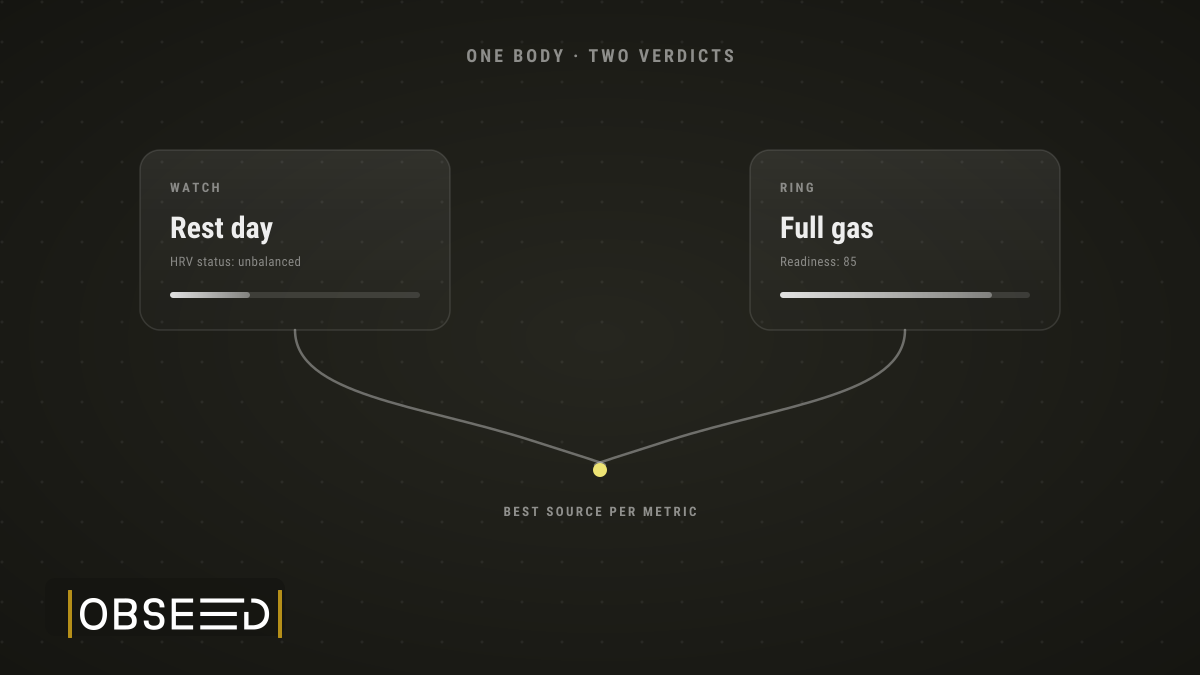
The Tracker Tango in the Data Jungle: Which Device Should I Believe?
Whoop says rest day, Garmin says threshold training. Why wearables contradict each other, and why your measurement method matters more than who is right.

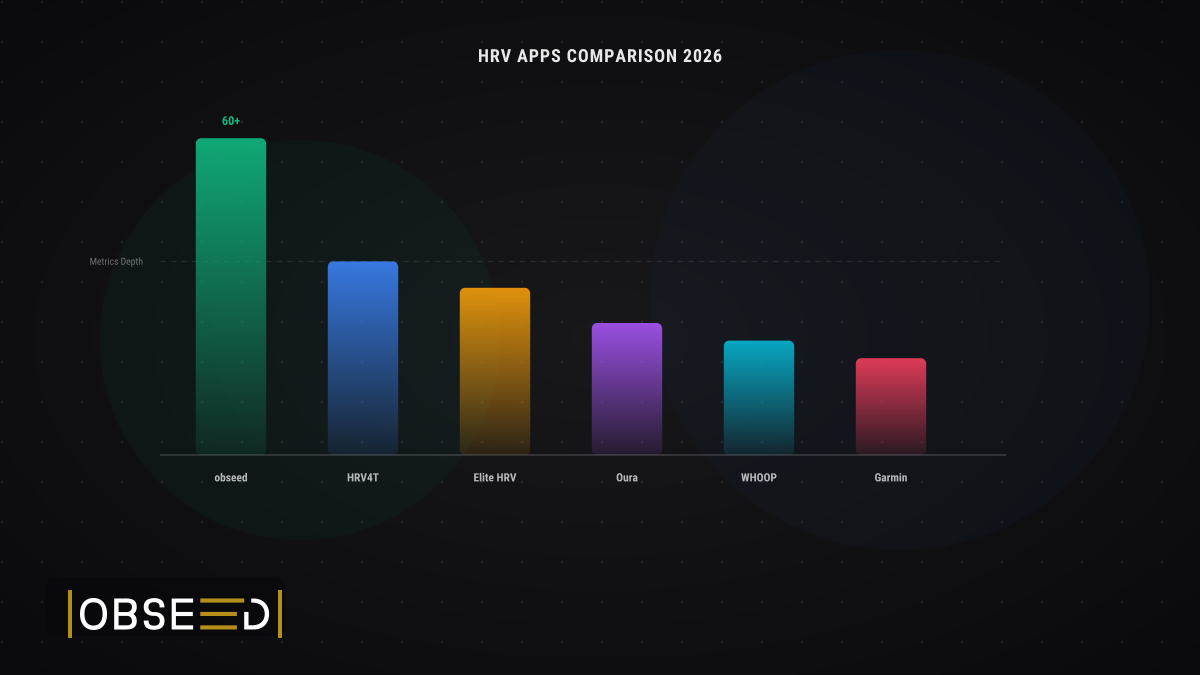
The Best HRV Apps for Endurance Athletes (2026 Comparison)
Comparing HRV apps for runners, cyclists, and triathletes: how obseed, HRV4Training, Elite HRV, WHOOP, and Garmin Connect stack up on metrics and value.

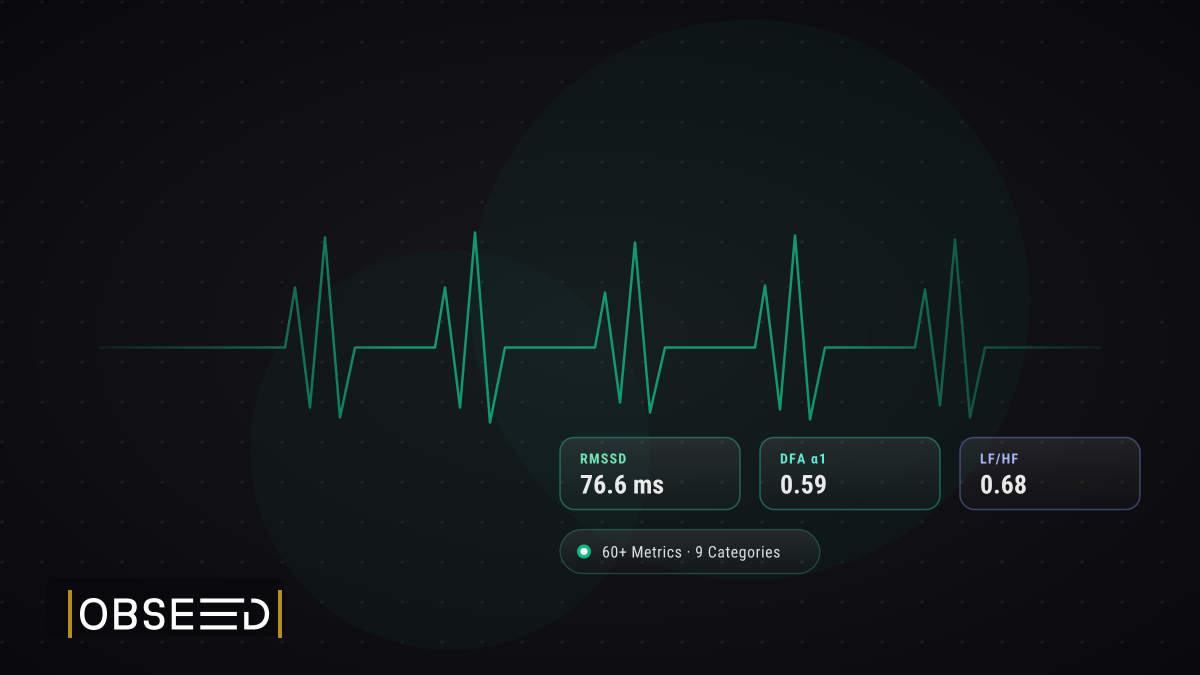
Your Nervous System, Decoded: HRV Analytics in obseed
60+ HRV metrics across 9 physiological categories from your wearable: Poincaré, DFA alpha-1, multiscale entropy, personal baseline, and 15-page reports.